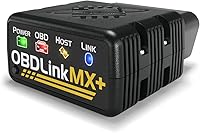
What Is a BimmerCode Adapter and Who Needs One?
A BimmerCode adapter links a compatible BMW or Mini to the BimmerCode app so you can change settings the app supports. Choose one that works with your exact car and phone, and check that the app offers the feature you want.
On this page (6 sections)
A BimmerCode adapter connects a compatible BMW or Mini to the BimmerCode app so you can change settings the app supports. It suits owners who want to code supported options, rather than simply read a check-engine code.
The adapter plugs into the car's OBD2 port and links the car to your phone. You also need the BimmerCode app, which is separate from the OBDLink CX adapter featured below.
Before choosing hardware, confirm that your exact car, phone, and intended coding option are supported.
What does a BimmerCode adapter do?
A BimmerCode adapter lets the app communicate with supported vehicle control units through the OBD2 port. Depending on the car's model, year, and equipment, the app may offer coding options that change settings or enable supported features.
The adapter can't add features the car doesn't support. Check BimmerCode's vehicle compatibility information for your exact vehicle and the feature you want before buying.
A coding adapter also isn't a universal fix for warning lights. For basic fault-code reading, start with how to read OBD2 codes from your car.
Who should buy a BimmerCode adapter?
Buy one if you have a compatible BMW or Mini and want to use the BimmerCode app for a supported coding change. Skip it if you only need to read basic engine faults, or if you'd rather use a dedicated handheld scanner.
Check these details before you spend money:
- Your exact vehicle model and year appear in BimmerCode's compatibility information.
- The app supports the specific setting you want on that car.
- The adapter works with your phone's operating system and connection method.
- You want app-based coding, rather than a broader diagnostic tool or a particular maintenance function.
If your main job is registering a replacement battery, compare the tools in our BMW battery registration tool guide. A coding adapter may not provide the service function you need.
Do you need a BimmerCode adapter to read trouble codes?
No, not for every type of code reading. Many OBD2 scanners can read basic engine faults, while BimmerCode is intended for supported coding functions and needs compatible hardware, a phone, and the app.
If a warning light is your concern, read what the check engine light means before choosing a tool. The code and the job you want to do determine whether a simple scanner is enough.
How do you choose a BimmerCode adapter?
Start with app and vehicle compatibility, then choose the tool that fits your main job. The OBDLink CX is the clearest option here for BimmerCode, while the other picks suit owners who want different diagnostic or service features.
Pick the OBDLink CX if BimmerCode coding is your priority and you want a small Bluetooth adapter for a phone. OBDLink says it is designed for BimmerCode and offers in-app pairing, sleep mode, and overvoltage protection.
Its separate OBDLink app also offers live parameters and diagnostics, with vehicle-specific diagnostics requiring an in-app purchase.
Skip it if you want a screen and buttons built into the tool, or if the coding option you need isn't supported on your car. The adapter doesn't replace checking the app's vehicle and feature compatibility.
Choose OBDeleven if you want its own diagnostic and coding app, and the supported features match your BMW or Mini. Its advanced BMW coverage includes F, G, and I Series models, plus most E Series models from around 2008 onward.
The included PRO plan supports manual coding and adaptations for supported vehicles, while One-Click Apps use credits.
Skip it if you only want the BimmerCode app, or don't want a plan and app credit system to consider. Check the exact vehicle, year, and feature before relying on its broader capabilities.
Choose Carista EVO if its app supports the feature you need and you want to use one adapter for diagnostics and customization across compatible vehicles. It works with Android and iOS.
Basic OBD2 features are available, while advanced diagnostics, service tools, live data, and customization require a paid app subscription.
Skip it if you don't want an ongoing subscription for advanced features, or if you need a specific BMW function that you haven't confirmed as supported. Check compatibility in the app first.
Pick the Foxwell NT510 Elite if you want a handheld scanner for diagnostics and supported maintenance functions, including battery registration. It can also perform active tests on supported vehicles.
The tool's services vary by model and year.
Skip it if your goal is specifically coding through BimmerCode on a phone. It's a separate scanner, so check its BMW compatibility and service coverage for your vehicle before buying.
For more choices built around BMW and Mercedes diagnostics, see our guide to BMW and Mercedes diagnostic tools. If a scanner fails to connect, try the steps in our OBD2 connection guide.
Is a BimmerCode adapter compatible with every BMW?
No. Adapter support and available coding options depend on the car and app, and not every BMW model or setting is covered.
Check your exact model and year in BimmerCode before you buy. A plug that fits the OBD2 port doesn't prove that the adapter supports the app.
Use BimmerCode's supported adapter details to confirm the connection choice. Check the phone requirements and intended coding option at the same time.
How do you set up and use a coding adapter?
Set up the adapter with the vehicle and app instructions in front of you. Park safely, switch on the vehicle as directed, plug the adapter into the OBD2 port, and connect through the app's pairing steps.
With the OBDLink CX, pairing is handled inside BimmerCode, according to OBDLink. The app is sold separately, so install it and confirm your vehicle before beginning a coding session.
Keep your phone charged and close to the car while the app is connected. Avoid interrupting the session or disconnecting the adapter while a change is being applied.
Follow any preparation or backup prompts in the app.
Start with the one setting you intend to change. Read its description and check whether the option affects a feature you rely on.
Don't change safety-related settings just to see what happens.
What common adapter mistakes should you avoid?
The most common mistake is buying based only on a familiar brand or a connector that fits. Confirm support for your exact car, phone, app, and feature before ordering.
Other mistakes can waste time or leave you with a tool that doesn't fit the job:
- Expecting every car to offer every option: Equipment and model year can affect coding availability.
- Assuming a general scanner works with BimmerCode: A scanner may use its own app and still lack BimmerCode support.
- Forgetting extra app costs: The BimmerCode app is separate from the OBDLink CX; Carista advanced features need a subscription, and OBDeleven One-Click Apps use credits.
- Choosing coding hardware for a maintenance task: Check for the exact service function, such as battery registration, before buying.
- Disconnecting during a change: Keep the phone connected and follow the app's instructions until the coding session is complete.
Can you leave a BimmerCode adapter plugged in?
That depends on the adapter and your vehicle. OBDLink says the CX has sleep mode and overvoltage protection intended to let it remain plugged in, but follow its instructions and check your car's compatibility.
For other adapters, unplugging after use is a sensible default unless their instructions say otherwise. Store the device where its connector won't collect dust or get bent, and inspect it before plugging it back in.
Which BimmerCode adapter should you choose?
Choose the OBDLink CX if your priority is BimmerCode coding and your phone and car are supported. Choose OBDeleven or Carista if their own apps and feature plans fit your needs, or the Foxwell if you want a handheld BMW scanner for diagnostics and maintenance.
Before buying, confirm compatibility for your exact vehicle and the job you plan to do. If you need general scan-tool help across car brands, use our plain car diagnostic tool buying guide.
Frequently asked questions
What does a BimmerCode adapter do?
A BimmerCode adapter connects your phone to a compatible BMW or Mini through its OBD2 port, letting the app access coding options supported by that vehicle. The adapter is the link between the car and app; it doesn't guarantee that every setting is available on every model or year.
Do I need a special adapter for BimmerCode?
You need an adapter that BimmerCode supports, plus a compatible phone and vehicle. Check BimmerCode's current adapter and vehicle compatibility information before you buy, since a general OBD2 scanner may not support the app's coding functions.
Can I use BimmerCode with an iPhone?
Yes, if you choose an adapter and vehicle that BimmerCode supports for iOS. The OBDLink CX supports iPhone and Android, but the app is sold separately.
Confirm your phone version, adapter connection method, and car compatibility in BimmerCode before starting.
Is a BimmerCode adapter the same as a diagnostic scanner?
Not exactly. An adapter connects the BimmerCode app to a car for supported coding tasks, while diagnostic tools may focus on reading faults, live data, or service functions.
Some devices offer both types of functions through their own apps, but compatibility and available features vary.